> ## Documentation Index
> Fetch the complete documentation index at: https://flowstate-577c2668.mintlify.site/llms.txt
> Use this file to discover all available pages before exploring further.
# Chat
**Chat** lets you interact with everything the Watcher surfaced across your live sessions. It reasons across all sessions in the workflow, so you can ask questions, find key moments, and turn them into a reel without leaving the workflow.
Use Chat to ask questions such as:
* "What was in the first chunk of the stream?"
* "Give me the top moments from this live session."
* "How did the content in session 1 differ from session 2?"
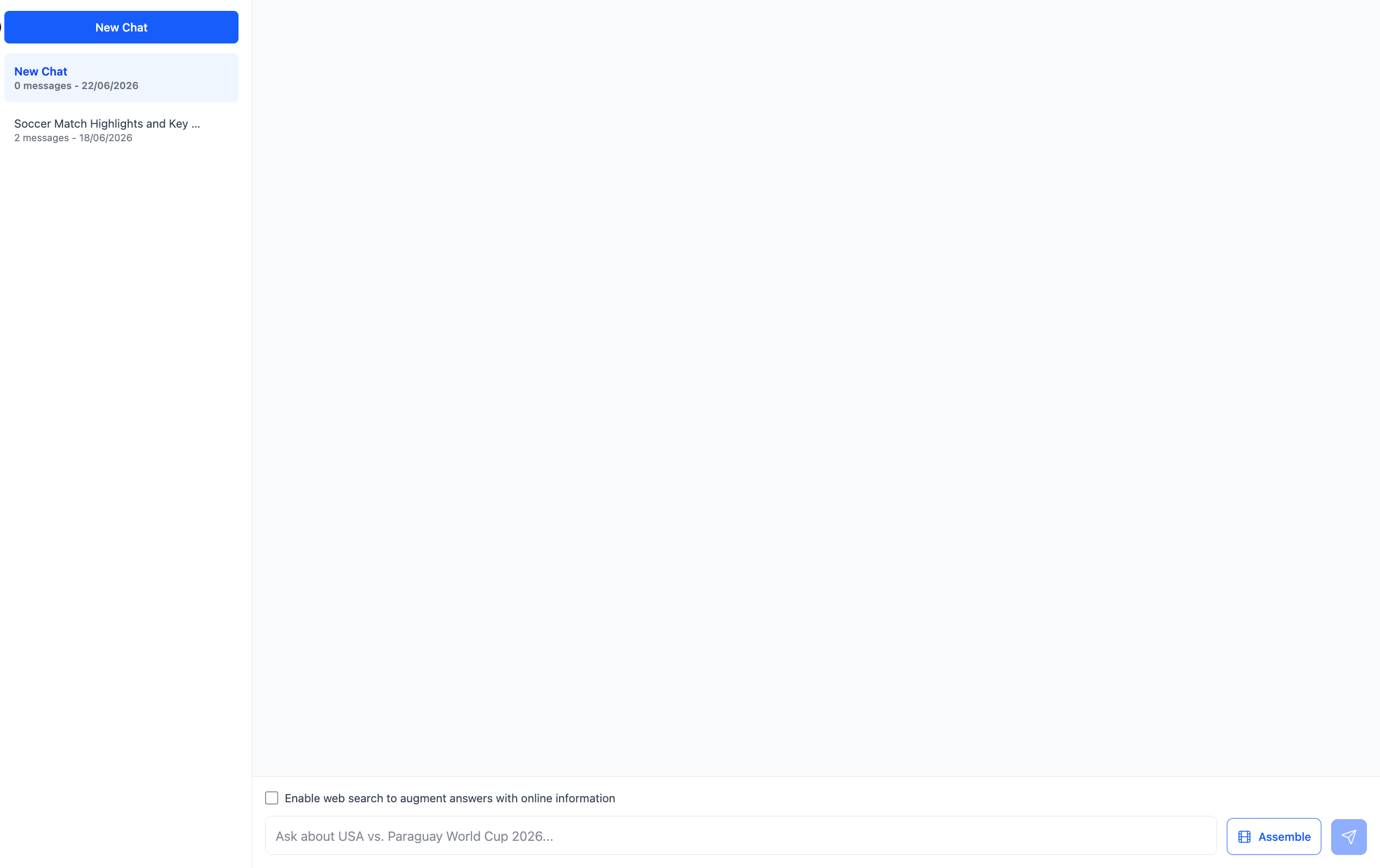 Click **New Chat** to start a conversation. Check **Search the web for additional context** to let Flowstate pull in external information alongside your video content.
## **Assembling a Reel from Chat**
The real power of Chat is that it reasons across all capture sessions in the workflow. This means you can pull moments from multiple streams into a single reel, which is not possible from the **Create** tab, which is limited to one session at a time.
Here is an example. Say you have captured a football tournament with three sessions in your workflow: the quarterfinal, the semifinal, and the final. You open Chat and ask:
"Give me the five best goals across all three matches."
Chat searches across all three sessions and returns an assembly plan showing five clips, each with a timestamp, a description, and the session it came from. You can click any clip to preview it before committing.
Click **New Chat** to start a conversation. Check **Search the web for additional context** to let Flowstate pull in external information alongside your video content.
## **Assembling a Reel from Chat**
The real power of Chat is that it reasons across all capture sessions in the workflow. This means you can pull moments from multiple streams into a single reel, which is not possible from the **Create** tab, which is limited to one session at a time.
Here is an example. Say you have captured a football tournament with three sessions in your workflow: the quarterfinal, the semifinal, and the final. You open Chat and ask:
"Give me the five best goals across all three matches."
Chat searches across all three sessions and returns an assembly plan showing five clips, each with a timestamp, a description, and the session it came from. You can click any clip to preview it before committing.
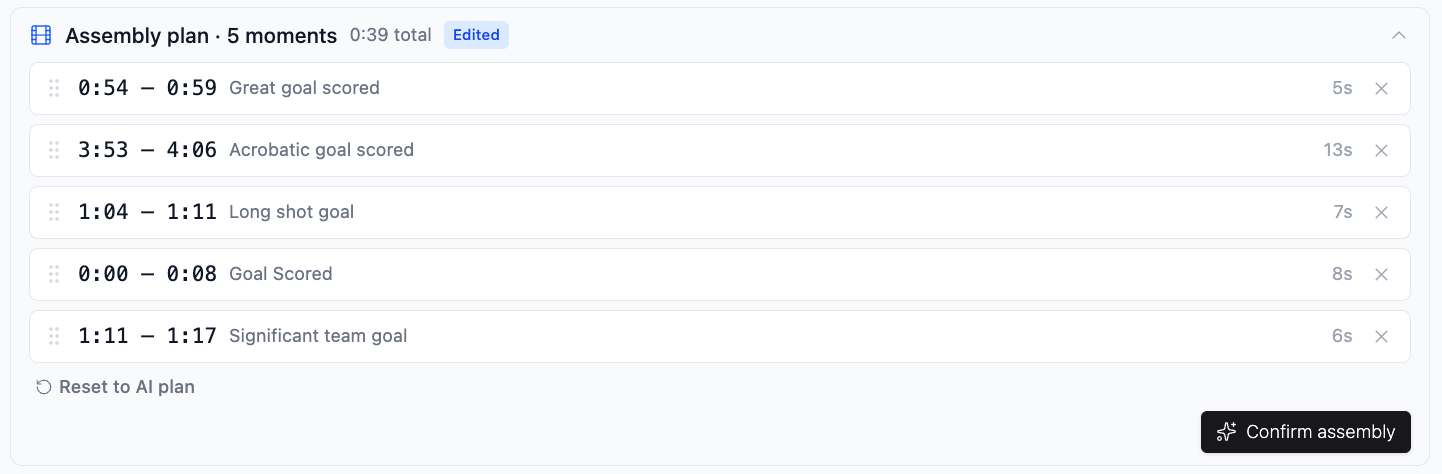 If the selection looks right, click **Confirm Assembly**. To refine it, click a clip and drag the blue handles to adjust the start and end points, or remove any clips you do not want. Once confirmed, Flowstate stitches the clips into a single reel, which appears under **Generated Reels** in the **Create** tab, ready to watch and download.
This documentation is built and hosted on [Mintlify](https://mintlify.com), a developer documentation platform.
If the selection looks right, click **Confirm Assembly**. To refine it, click a clip and drag the blue handles to adjust the start and end points, or remove any clips you do not want. Once confirmed, Flowstate stitches the clips into a single reel, which appears under **Generated Reels** in the **Create** tab, ready to watch and download.
This documentation is built and hosted on [Mintlify](https://mintlify.com), a developer documentation platform.