> ## Documentation Index
> Fetch the complete documentation index at: https://flowstate-577c2668.mintlify.site/llms.txt
> Use this file to discover all available pages before exploring further.
# Create
**Create** lets you create a derivative video output from analyzed videos. Select your source videos, describe what you want, and Flowstate packages the relevant moments into a reel.
## **Generating a reel**
**Source Videos:** Flowstate pulls from the watched videos in your workflow. You will see a list of eligible videos at the top of the page. If a video is missing, check that its status in the Videos tab shows as Watched.
**Reel Title:** Give the reel a custom name. Leave this blank and Flowstate will generate a default name for you.
**Context Prompt:** Describe the reel you want to create. Be specific about the moments you are looking for, such as "best goals from the second half" or "every time the speaker mentions the product roadmap."
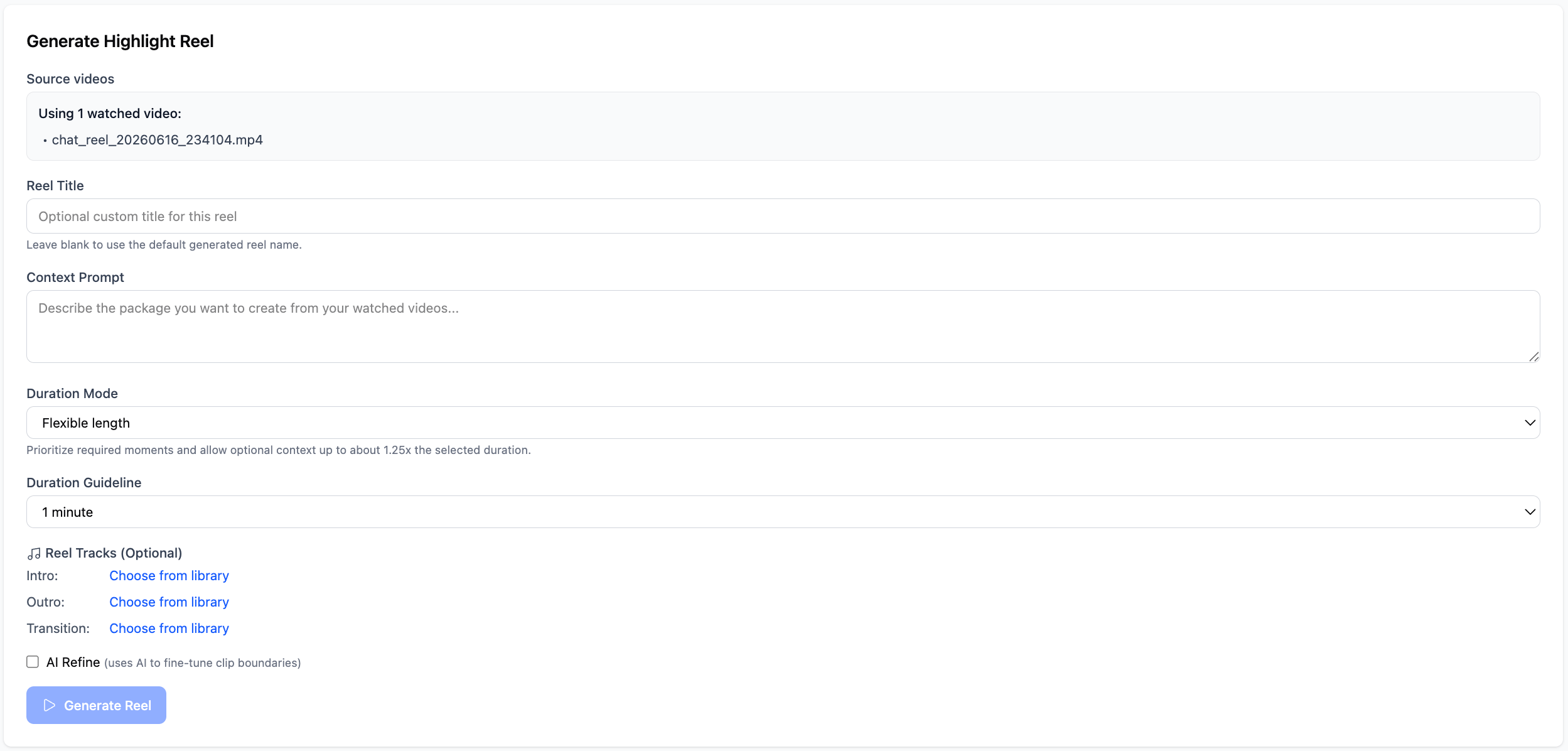 **Duration Mode:** Choose how strictly Flowstate should stick to your target length.
* **Flexible length:** Prioritizes the best moments and allows the reel to run up to 1.25x the target duration if needed.
* **Target length:** Keeps the reel closer to the exact duration you set.
**Duration Guideline:** Set your target reel length. The default is 1 minute.
**Reel Tracks:** Add intro, outro, and transition audio by selecting tracks from your library.
**AI Refine:** Check this to let Flowstate fine-tune clip boundaries for a cleaner result.
When ready, click **Generate Reel**. Your finished reel appears under **Generated Reels**, where you can watch it back, review the selected clips, and download it.
## **Reviewing a reel**
Click a reel in the Generated Reels list to open it. Each reel page shows:
**Duration Mode:** Choose how strictly Flowstate should stick to your target length.
* **Flexible length:** Prioritizes the best moments and allows the reel to run up to 1.25x the target duration if needed.
* **Target length:** Keeps the reel closer to the exact duration you set.
**Duration Guideline:** Set your target reel length. The default is 1 minute.
**Reel Tracks:** Add intro, outro, and transition audio by selecting tracks from your library.
**AI Refine:** Check this to let Flowstate fine-tune clip boundaries for a cleaner result.
When ready, click **Generate Reel**. Your finished reel appears under **Generated Reels**, where you can watch it back, review the selected clips, and download it.
## **Reviewing a reel**
Click a reel in the Generated Reels list to open it. Each reel page shows:
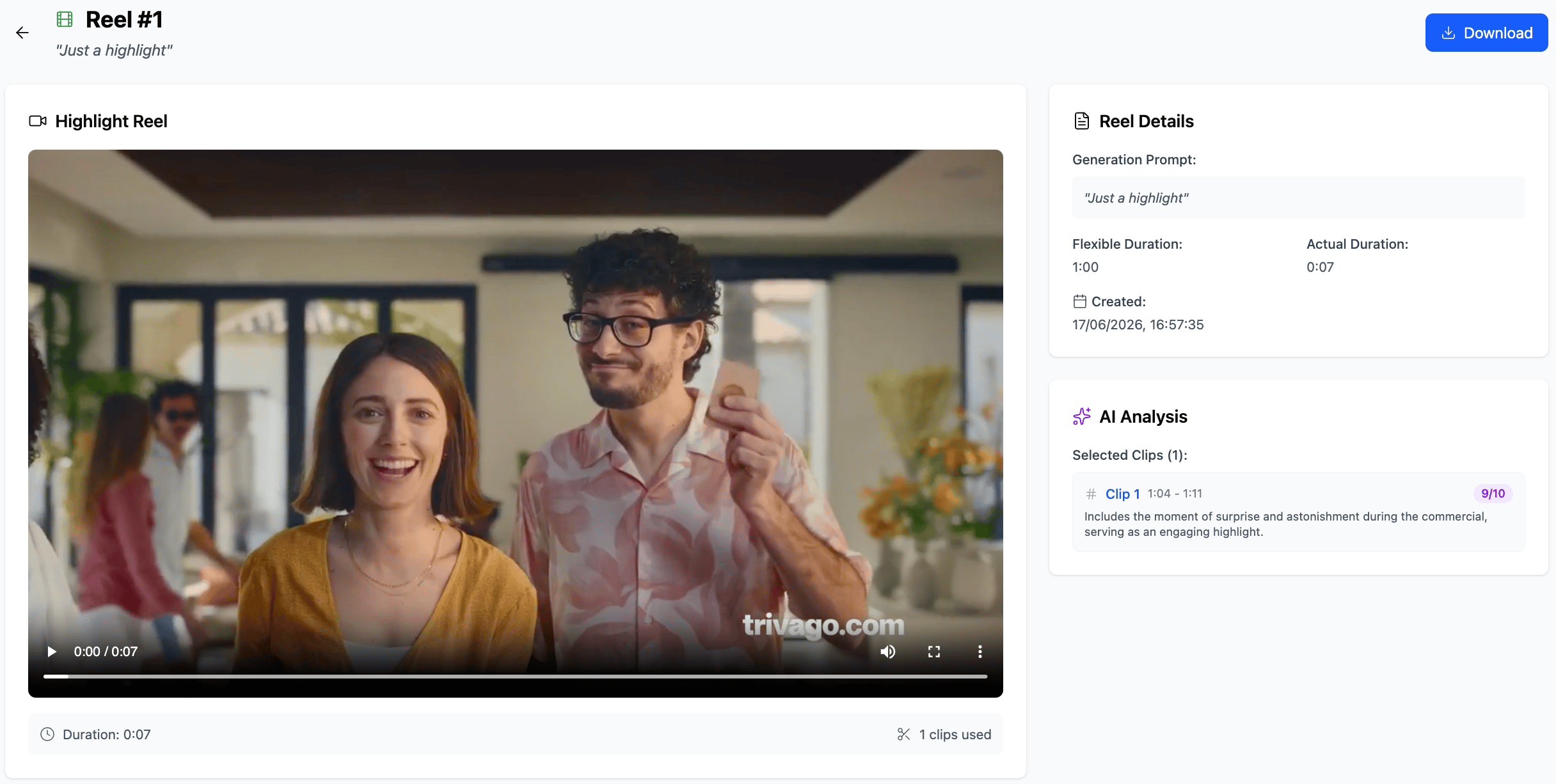 **Video Player:** Watch the assembled reel in full. The total duration and number of clips are shown below the player.
**Reel Details:** Shows the generation prompt, target duration, actual duration, and creation date.
**AI Analysis:** Lists every clip selected for the reel, with the time range, a confidence score out of 10, and a short description of why that moment was chosen. Use this to understand what the Watcher Agent picked and refine your **Context Prompt** if the selection is not quite right.
Click **Download** in the top right to save the reel.
This documentation is built and hosted on [Mintlify](https://mintlify.com), a developer documentation platform.
**Video Player:** Watch the assembled reel in full. The total duration and number of clips are shown below the player.
**Reel Details:** Shows the generation prompt, target duration, actual duration, and creation date.
**AI Analysis:** Lists every clip selected for the reel, with the time range, a confidence score out of 10, and a short description of why that moment was chosen. Use this to understand what the Watcher Agent picked and refine your **Context Prompt** if the selection is not quite right.
Click **Download** in the top right to save the reel.
This documentation is built and hosted on [Mintlify](https://mintlify.com), a developer documentation platform.