> ## Documentation Index
> Fetch the complete documentation index at: https://flowstate-577c2668.mintlify.site/llms.txt
> Use this file to discover all available pages before exploring further.
# Schema Builder
**Schema Builder** is where you design the data structure you want the AI Watcher to extract from your videos. Define the fields once, save a version, and Flowstate uses that schema as a template for every video in the workflow.
## **Building your schema**
**General Instructions**
Start by writing a short description of what the schema covers. This gives the AI context before extraction begins, such as "Focus on passes of the ball" or "Focus on customer sentiment, product mentions, and any issues raised."
**Schema Fields**
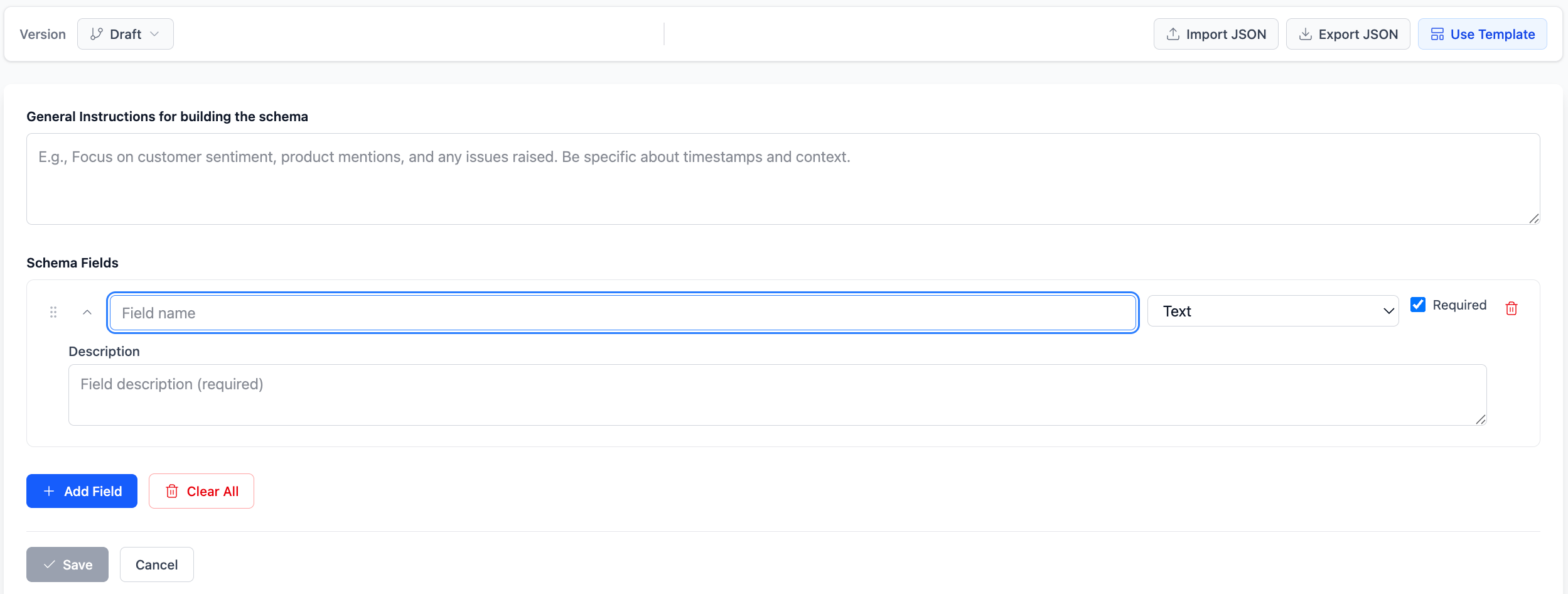 Schema Fields are the specific data points you want to extract. Each field has three parts:
* **Field name:** What you want to call the data point, such as "Team USA passes in the first half."
* **Field type:** The format the extracted value should be returned in.
* **Description:** A plain language explanation of what to extract, such as "Count how many passes Team USA has of the ball in the first half of the game." The more specific the description, the more accurate the extraction.
You can mark a field as **Required**, which tells Flowstate to extract that field even if the information is not clearly present in the video.
Click **Add Field** to add more fields. Click the red bin icon to remove a field.
**Field types**
Choose the field type that matches the kind of data you want back:
| Type | What it returns |
| :- | :- |
| **Text** | A short or long piece of text |
| **Number (Integer)** | A whole number |
| **Number (Decimal)** | A number with decimal points |
| **Timestamp (seconds in video)** | A point in time within the video |
| **Yes/No** | A boolean true or false value |
| **Choice (Single)** | One option from a predefined list |
| **Choices (Multiple)** | One or more options from a predefined list |
| **List of Text** | Multiple text values |
| **List of Numbers** | Multiple whole numbers |
| **List of Decimals** | Multiple decimal numbers |
| **List of Yes/No** | Multiple boolean values |
| **Group of Fields** | A nested set of fields |
| **Repeating Group** | A group of fields that repeats, useful for events that occur multiple times |
**Schema JSON Preview**
Schema Fields are the specific data points you want to extract. Each field has three parts:
* **Field name:** What you want to call the data point, such as "Team USA passes in the first half."
* **Field type:** The format the extracted value should be returned in.
* **Description:** A plain language explanation of what to extract, such as "Count how many passes Team USA has of the ball in the first half of the game." The more specific the description, the more accurate the extraction.
You can mark a field as **Required**, which tells Flowstate to extract that field even if the information is not clearly present in the video.
Click **Add Field** to add more fields. Click the red bin icon to remove a field.
**Field types**
Choose the field type that matches the kind of data you want back:
| Type | What it returns |
| :- | :- |
| **Text** | A short or long piece of text |
| **Number (Integer)** | A whole number |
| **Number (Decimal)** | A number with decimal points |
| **Timestamp (seconds in video)** | A point in time within the video |
| **Yes/No** | A boolean true or false value |
| **Choice (Single)** | One option from a predefined list |
| **Choices (Multiple)** | One or more options from a predefined list |
| **List of Text** | Multiple text values |
| **List of Numbers** | Multiple whole numbers |
| **List of Decimals** | Multiple decimal numbers |
| **List of Yes/No** | Multiple boolean values |
| **Group of Fields** | A nested set of fields |
| **Repeating Group** | A group of fields that repeats, useful for events that occur multiple times |
**Schema JSON Preview**
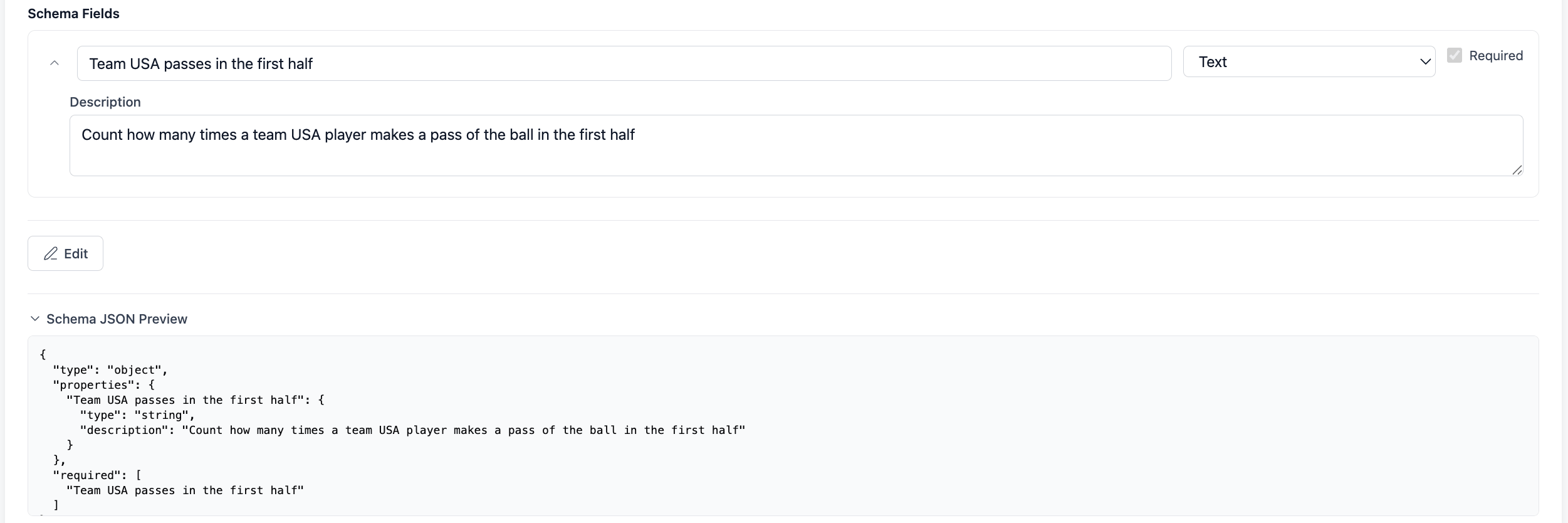 As you build your schema, the **JSON Preview** at the bottom of the page updates in real time. It shows the schema structure and what the output will look like. You do not need to understand JSON to use Structured Extraction, but the preview is useful for verifying the structure before saving.
## **Saving a version**
When your schema is ready, click **Save Version**. A window appears where you can add an optional version label and notes to describe what changed.
Once saved, a schema version is locked and cannot be edited. This is intentional. Locking versions ensures that every video watched with a given schema produces output that is traceable back to the exact schema used. If you need to make changes, save a new version and re-watch your videos against it.
> **Important:** A video can only be watched once a schema version has been saved. The Watch option stays inactive until at least one version exists.
## **Importing and exporting**
If you already have a JSON schema click **Import JSON** to load it into the Schema Builder. This saves you from having to recreate fields manually.
Click **Export JSON** to save your current schema as a JSON file. This is useful for sharing schemas across workflows.
Click **Use Template** to start from a pre-built schema and edit the fields to match your use case.
This documentation is built and hosted on [Mintlify](https://mintlify.com), a developer documentation platform.
As you build your schema, the **JSON Preview** at the bottom of the page updates in real time. It shows the schema structure and what the output will look like. You do not need to understand JSON to use Structured Extraction, but the preview is useful for verifying the structure before saving.
## **Saving a version**
When your schema is ready, click **Save Version**. A window appears where you can add an optional version label and notes to describe what changed.
Once saved, a schema version is locked and cannot be edited. This is intentional. Locking versions ensures that every video watched with a given schema produces output that is traceable back to the exact schema used. If you need to make changes, save a new version and re-watch your videos against it.
> **Important:** A video can only be watched once a schema version has been saved. The Watch option stays inactive until at least one version exists.
## **Importing and exporting**
If you already have a JSON schema click **Import JSON** to load it into the Schema Builder. This saves you from having to recreate fields manually.
Click **Export JSON** to save your current schema as a JSON file. This is useful for sharing schemas across workflows.
Click **Use Template** to start from a pre-built schema and edit the fields to match your use case.
This documentation is built and hosted on [Mintlify](https://mintlify.com), a developer documentation platform.