> ## Documentation Index
> Fetch the complete documentation index at: https://flowstate-577c2668.mintlify.site/llms.txt
> Use this file to discover all available pages before exploring further.
# Smart Search
> Smart Search lets you find exactly what you need across your Videos and Images—using plain language. Search works best when Smart Search is enabled during upload (so content is indexed for discovery).
\
Be as specific as possible (“pizza slice close-up”, “chef talking about pizza”). If you see too many results, add context (“in the kitchen”, “logo visible”). If you see too few, try synonyms (“slice” instead of “pizza”).
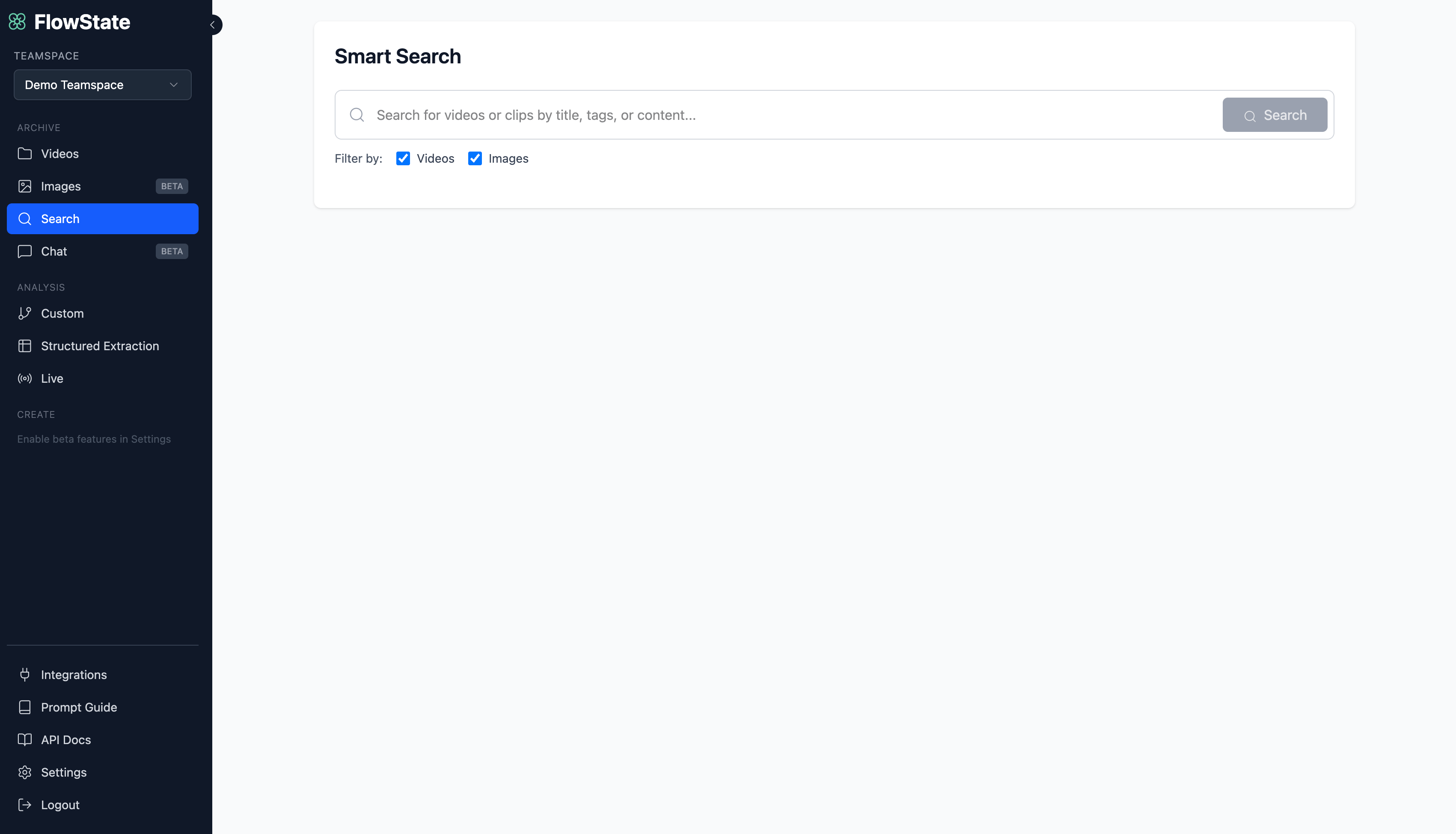 ## Enter a query
Use the search bar to describe what you’re looking for. Queries can be about:
* **Objects / visuals:** “pizza”, “microphone”
* **Moments / actions:** “someone takes a bite”, “the reveal”, “applause”
* **People / entities:** “the chef”, “Speaker 2”, “pricing”
* **Emotions / tone:** “excited reaction”, “tense moment”, “laughing”
* **Words / dialogue:** “find the moment they say ‘pricing’”, “when they mention ‘roadmap’”, “the quote about competitors”, “applause after the announcement”
Click **Search** to run the query.
## Enter a query
Use the search bar to describe what you’re looking for. Queries can be about:
* **Objects / visuals:** “pizza”, “microphone”
* **Moments / actions:** “someone takes a bite”, “the reveal”, “applause”
* **People / entities:** “the chef”, “Speaker 2”, “pricing”
* **Emotions / tone:** “excited reaction”, “tense moment”, “laughing”
* **Words / dialogue:** “find the moment they say ‘pricing’”, “when they mention ‘roadmap’”, “the quote about competitors”, “applause after the announcement”
Click **Search** to run the query.
 ***
## Filter what you’re searching
Use **Filter by** to choose where Flowstate should look:
* **Videos** (find moments inside videos)
* **Images** (find matching images)
You can select one or both.
***
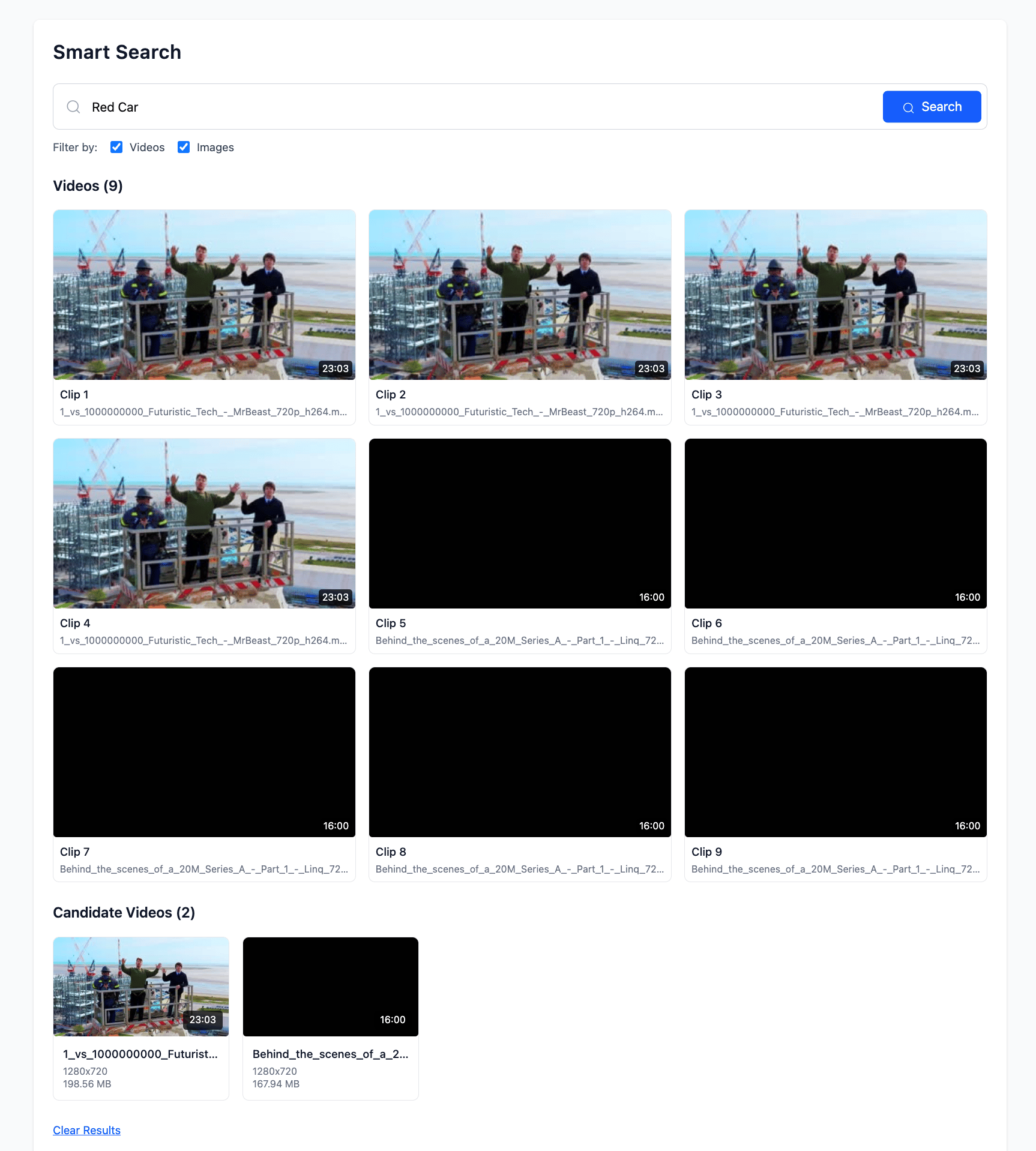
## Understand results
Smart Search returns results as cards.
**Videos**\
Shows the matching clips found inside videos. Each result is a clip (a specific time range) that matches your query.
**Candidate Videos**\
Shows the source videos that likely contain relevant moments. Use this to quickly jump into the right video even before reviewing individual clips.
***
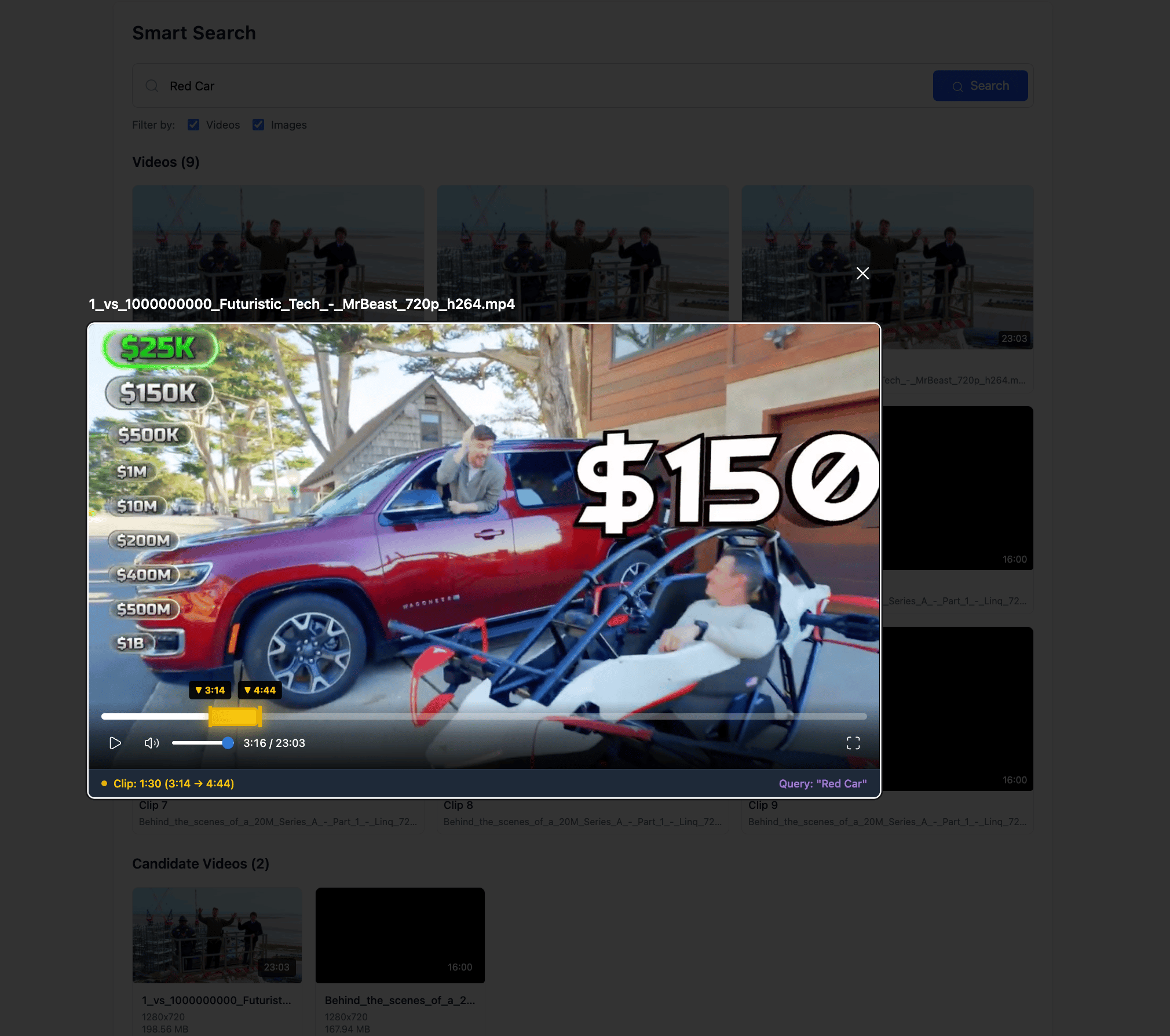
## Open a result
Click a clip to open the video player. You’ll see the clip’s time range and playback focused on the matching segment, so you can review and confirm the exact moment.
***
## Filter what you’re searching
Use **Filter by** to choose where Flowstate should look:
* **Videos** (find moments inside videos)
* **Images** (find matching images)
You can select one or both.
***
## Understand results
Smart Search returns results as cards.
**Videos**\
Shows the matching clips found inside videos. Each result is a clip (a specific time range) that matches your query.
**Candidate Videos**\
Shows the source videos that likely contain relevant moments. Use this to quickly jump into the right video even before reviewing individual clips.
***
## Open a result
Click a clip to open the video player. You’ll see the clip’s time range and playback focused on the matching segment, so you can review and confirm the exact moment.
 This documentation is built and hosted on [Mintlify](https://mintlify.com), a developer documentation platform.