> ## Documentation Index
> Fetch the complete documentation index at: https://flowstate-577c2668.mintlify.site/llms.txt
> Use this file to discover all available pages before exploring further.
# Video
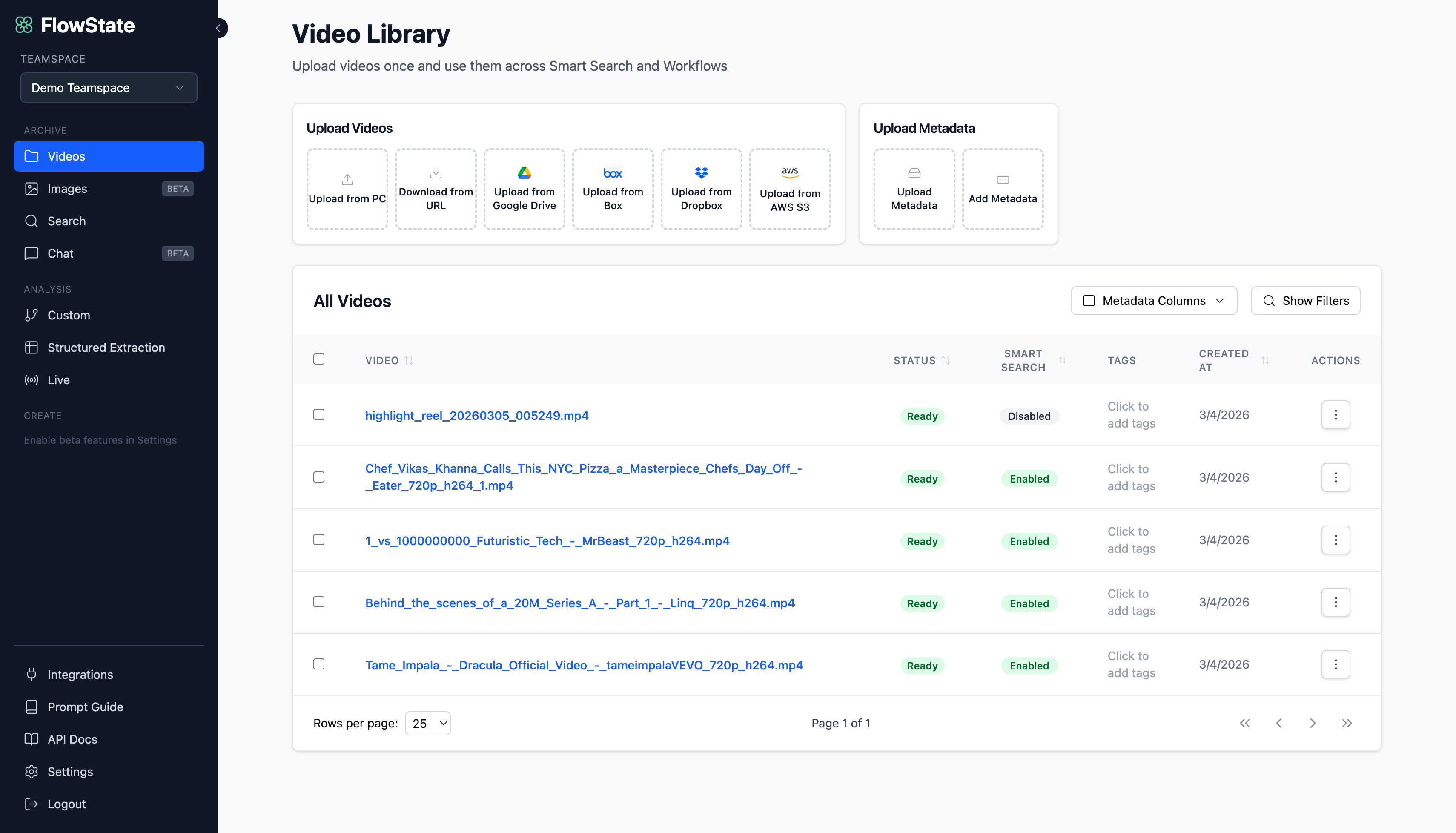
> The Videos page is your team’s central library for uploading and managing videos. Upload a video once, then use it across Search and Workflows.
Uploading is the setup step for everything you’ll do in Flowstate. When you upload a video, you’re not just adding a file—you’re also preparing it for how it will be used next.
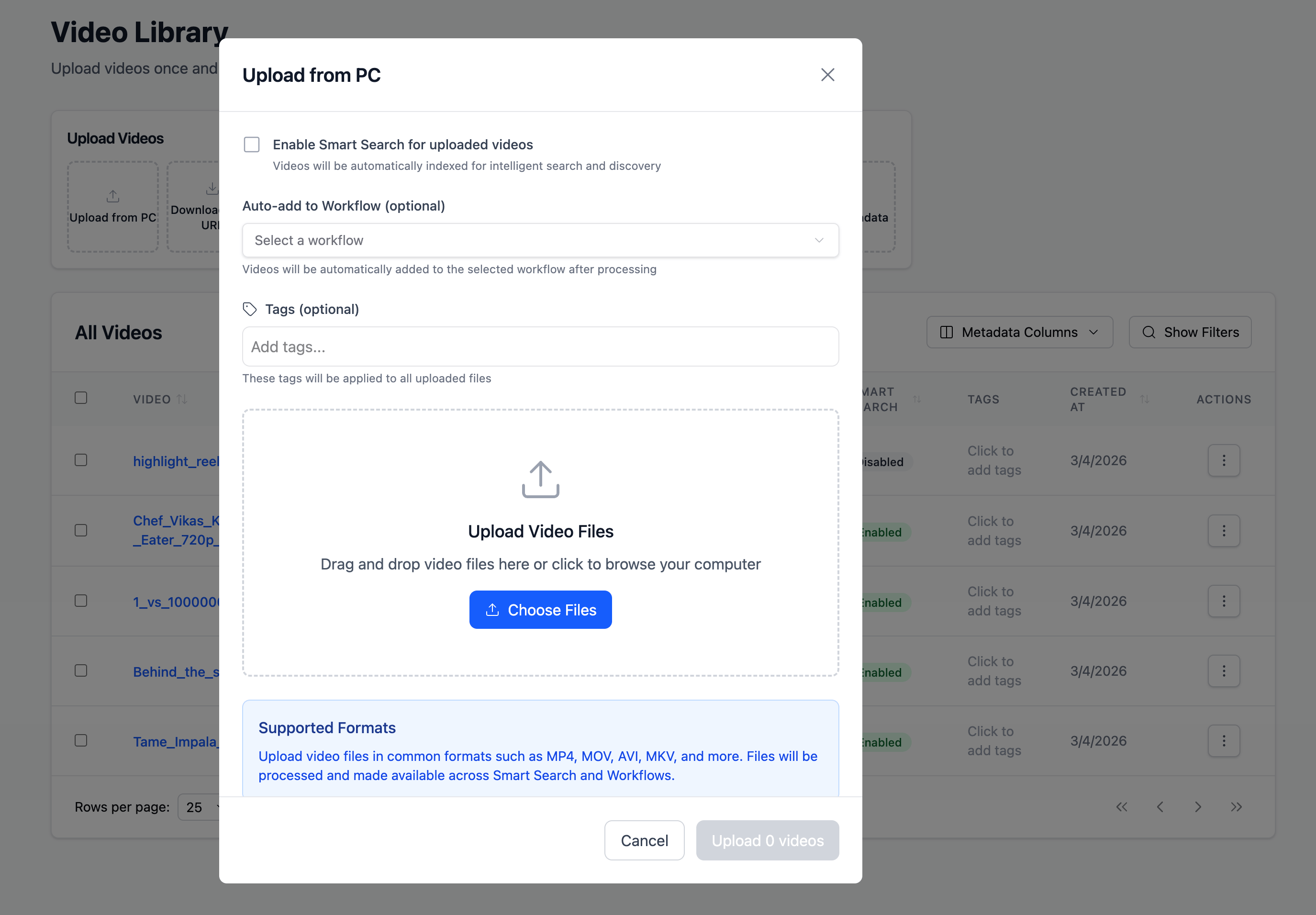
**During upload, you can:**
* **Add tags** to keep your library organized (e.g., “Interview”, “Episode 12”, “NAB”).
* **Enable Smart Search** to index the video for moment-level discovery (moments, emotions, objects, people, key quotes).
* **Auto-add to a workflow** so the video is routed into an automation as soon as processing completes (e.g., summaries, clip lists, structured outputs, compliance checks).
Once processing finishes and the video is **Ready**, it appears in the **All Videos** table and is available across **Search** and **Workflows**.
 ### Upload options
Use the **Upload Videos** panel to bring videos in from:
* **Upload from PC**\
Drag and drop (or choose files) from your computer.
* **Download from URL**\
For YouTube links or private AWS links (e.g., presigned S3 URLs). Paste one or more URLs (comma-separated) and Flowstate will download and process them.
* **Upload from Google Drive / Box / Dropbox**\
Connect your account, browse, and select videos—best if your team already works out of cloud drives.
* **Upload from AWS S3**\
Browse connected S3 buckets and select videos—ideal for large libraries and high-volume ingestion.
**Note:** No matter how you upload, every video ends up in the same place–the All Videos table.
### Upload options
Use the **Upload Videos** panel to bring videos in from:
* **Upload from PC**\
Drag and drop (or choose files) from your computer.
* **Download from URL**\
For YouTube links or private AWS links (e.g., presigned S3 URLs). Paste one or more URLs (comma-separated) and Flowstate will download and process them.
* **Upload from Google Drive / Box / Dropbox**\
Connect your account, browse, and select videos—best if your team already works out of cloud drives.
* **Upload from AWS S3**\
Browse connected S3 buckets and select videos—ideal for large libraries and high-volume ingestion.
**Note:** No matter how you upload, every video ends up in the same place–the All Videos table.
 ## Upload metadata
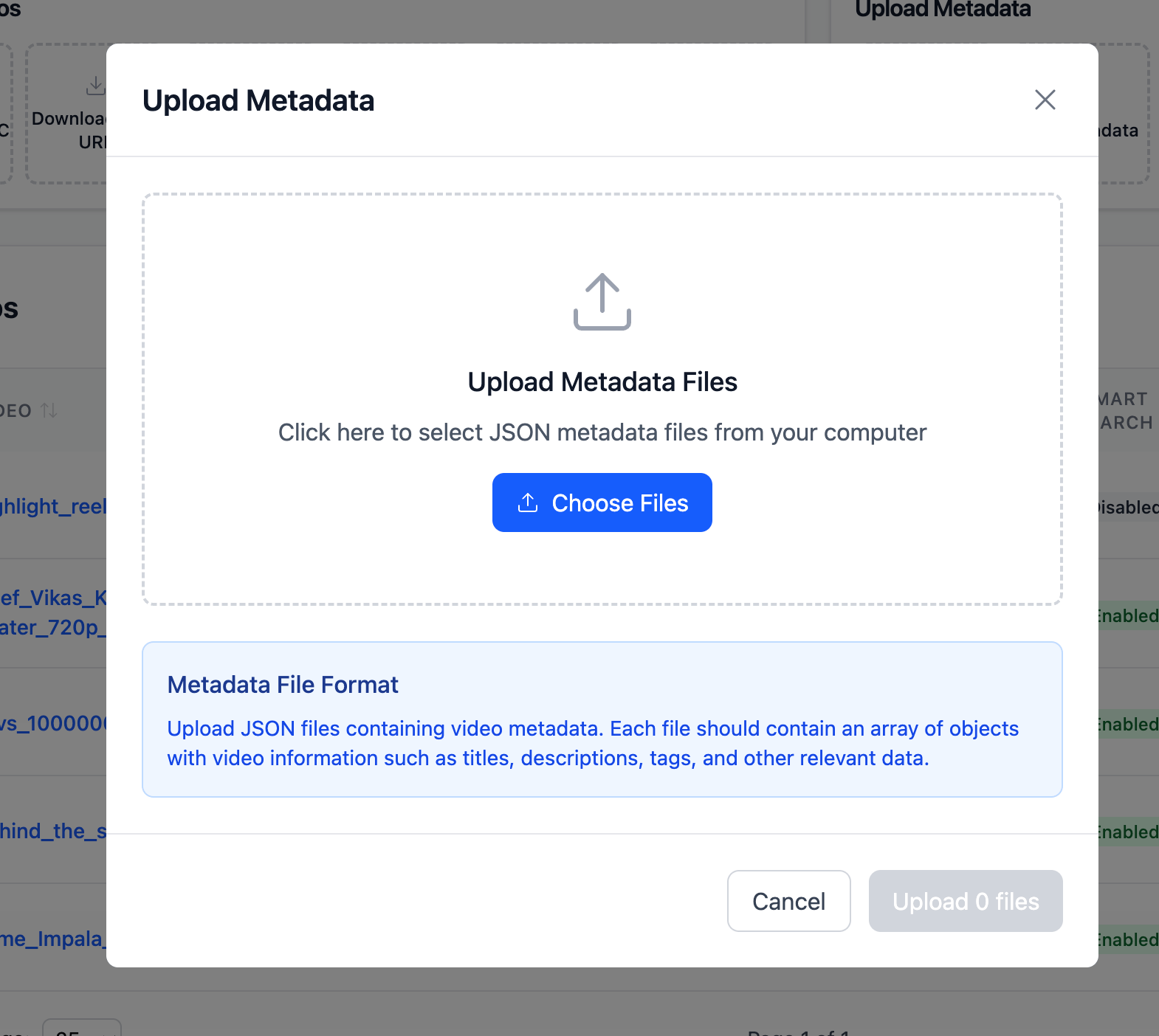
Next to Upload Videos, you’ll see Upload Metadata, which helps you enrich videos with structured fields for organization and filtering.
### Upload Metadata (JSON)
Upload **JSON metadata files** from your computer. This is best when metadata already exists in another system (CMS/MAM/DAM) or you’re exporting from a spreadsheet.
### Add Metadata (manual)
Add metadata directly in the UI using key-value fields. To attach metadata to a specific video, enter the exact video filename, then add fields like `series`, `episode`, `speaker`, `category`, or any custom attribute.
**Why metadata matters:** Metadata can be shown as table columns and used in filters, making it much easier to manage and operate on large video libraries.
## Upload metadata
Next to Upload Videos, you’ll see Upload Metadata, which helps you enrich videos with structured fields for organization and filtering.
### Upload Metadata (JSON)
Upload **JSON metadata files** from your computer. This is best when metadata already exists in another system (CMS/MAM/DAM) or you’re exporting from a spreadsheet.
### Add Metadata (manual)
Add metadata directly in the UI using key-value fields. To attach metadata to a specific video, enter the exact video filename, then add fields like `series`, `episode`, `speaker`, `category`, or any custom attribute.
**Why metadata matters:** Metadata can be shown as table columns and used in filters, making it much easier to manage and operate on large video libraries.
 This documentation is built and hosted on [Mintlify](https://mintlify.com), a developer documentation platform.