
The Videos tab is where you add the videos you want to extract data from and review the output once a video has been watched. Structured Extraction works differently from Custom. Instead of writing freeform instructions, you define a schema in the Schema Builder that tells the AI Watcher exactly what fields to extract and in what format. The schema is the form Flowstate fills in for every video. A video cannot be watched until a schema has been built and saved.

Adding videos

Click Add Videos to add to the workflow. Uploaded videos appear in the Workflow Videos table.
Tip: Use Metadata Columns to add custom fields to the table, and Show Filters to narrow down large video lists by status or date.

Watching a video

Once you have built and saved a schema in the Schema Builder, you can watch videos against it.
Image
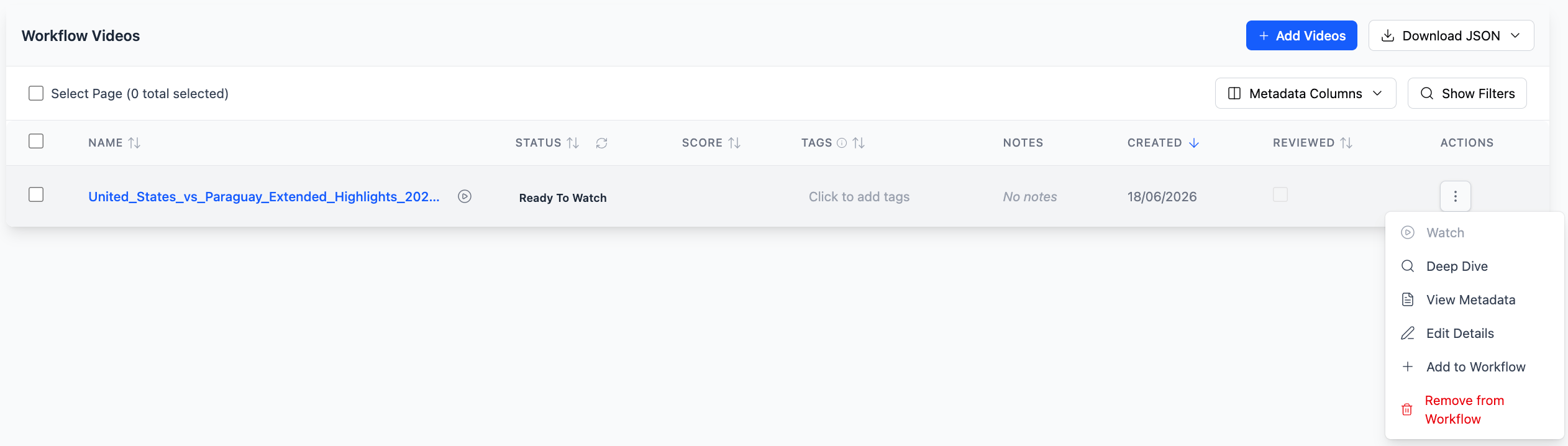
Click the three dots on the right side of any video row to open the Actions menu. From there you can:
  • Watch: Run the video through the AI Watcher using your schema.
  • Deep Dive: Open the video output page.
  • View Metadata: See the metadata attached to the video.
  • Edit Details: Edit the video’s tags and notes.
  • Add to Workflow: Add the video to another workflow.
  • Remove from Workflow: Remove the video from this workflow.
Screenshot 2026 06 18 At 15 52 46
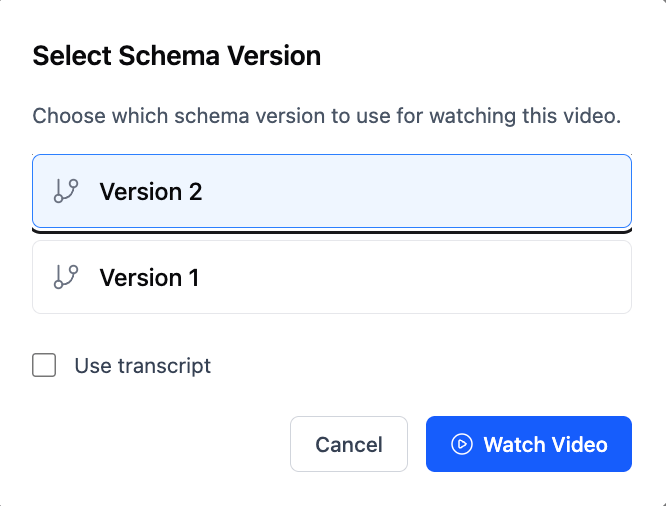
Click Watch to start. A window appears asking you to select which schema version to use and whether to enable Use transcript to support the extraction with the spoken audio. Click Watch Video to confirm.
Note: Each video is watched against a specific schema version. If you update your schema and save a new version, you can re-watch videos against the new version. The status column will always show which schema version was used, so you can tell exactly which output belongs to which schema.

Reviewing output

Once the Watcher finishes, the status changes to Watched with schema [xxx]. Click the video to open its output page.

Screenshot 2026 06 18 At 15 54 21
AI Watcher Output shows the extracted data as structured JSON, matching the fields you defined in your schema. The output panel displays the schema version used, a status of Completed, and a note that versioned outputs are read-only. This means the output is locked to that schema version and cannot be edited, keeping your data consistent and traceable. You can copy the output or click Download JSON to save it. Transcript is a timestamped transcript of everything spoken in the video. Click a timestamp to jump to that moment, or use the search field to find specific words or phrases. Video Details shows the tags and notes attached to this video, along with a Reviewed toggle to mark the output as reviewed. Use this to track which videos in a large batch have been checked. Edit History is a log of any edits made to the video output.

Comparing schema versions

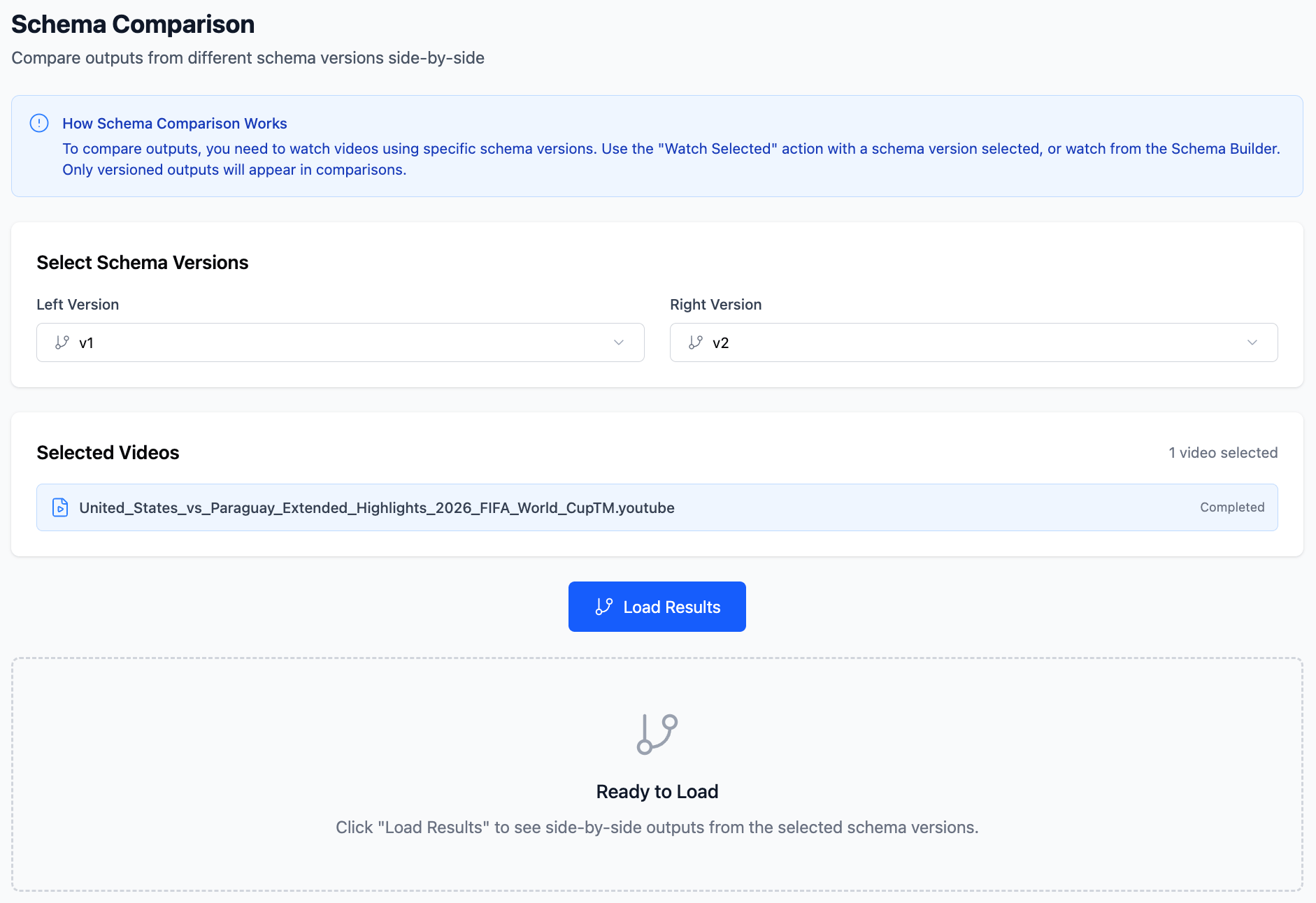
If you have watched a video against more than one schema version, you can compare the outputs side by side to see how the results differ. This is useful when you have updated a schema and want to check whether the new version extracts data more accurately before re-watching your full library. To open Schema Comparison, check the box next to the video you want to compare in the Workflow Videos table, click Bulk Actions, and select Compare Schema Outputs.
Screenshot 2026 06 22 At 21 24 29
The Comparison Results section shows the JSON output from each schema version side by side for every selected video, so you can see exactly how the two versions differ.
Note: Only videos that have been watched using versioned schemas will appear in the comparison. If a video has only been watched once, you will need to watch it against a second schema version before you can compare.