Adding Videos
Before the AI Watcher can analyze anything, it needs videos to work with. Click Add Videos to add videos from your library. Alternatively, go to Archive, select one or more videos, and use the Bulk Actions menu to add them to a workflow from there.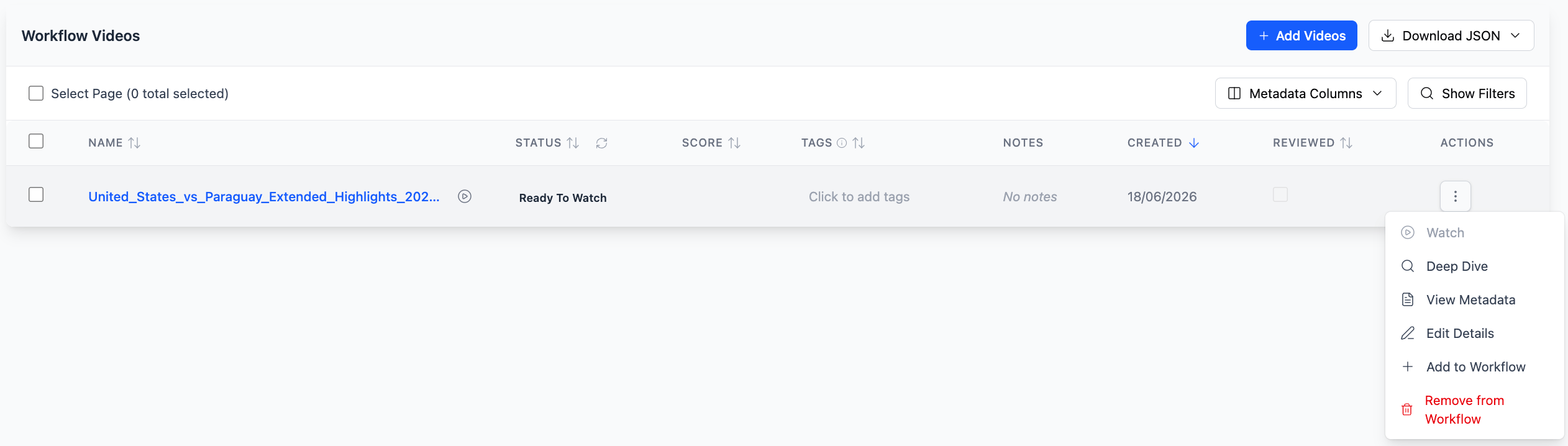
Tip: Use Metadata Columns to add custom fields to the table, and Show Filters to narrow down large video lists by status, tags, or date.
Writing your AI Watcher Instructions
The AI Watcher Instructions box is right below the video table. This is where you tell the AI Watcher what to look for and what to return. Click Edit Instructions to open the field and start writing. Good instructions specify the goal, the format, and any constraints. The more specific you are, the better the output. Here are some examples:- “Watch this soccer match and identify highlight moments for both broadcast and social distribution. For broadcast, include the most important plays and reactions with timestamps. For social, identify single-subject moments with centered framing.”
- “Extract every mention of pricing or contract terms. For each one, include a direct quote and a timestamp.”
- “Flag any statements that could be a compliance risk. Include the exact quote and timestamp for each one.”

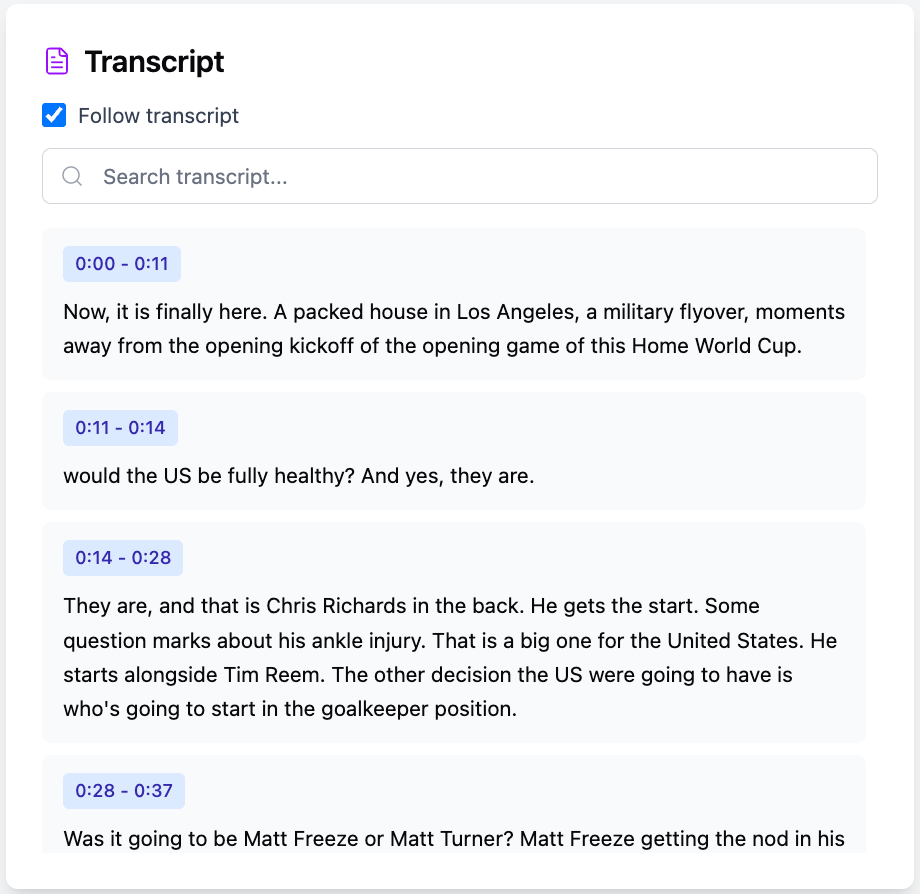
- Enforce JSON Output: Returns results as structured JSON. Use this when the output needs to feed into another tool or system.
- Run on Chunks (Beta): Processes the video in segments rather than all at once. Useful for long videos or content-dense footage.
- Use Transcription (Beta): Incorporates spoken audio into the analysis. Best for dialogue-heavy or interview footage.
Running the Workflow
Once your videos and instructions are in place, click Watch All Videos. Flowstate sends your instructions to the AI Watcher, which begins processing every video in the workflow. A confirmation banner appears at the top of the screen, and each video’s status updates to In Progress as the Watcher works through them.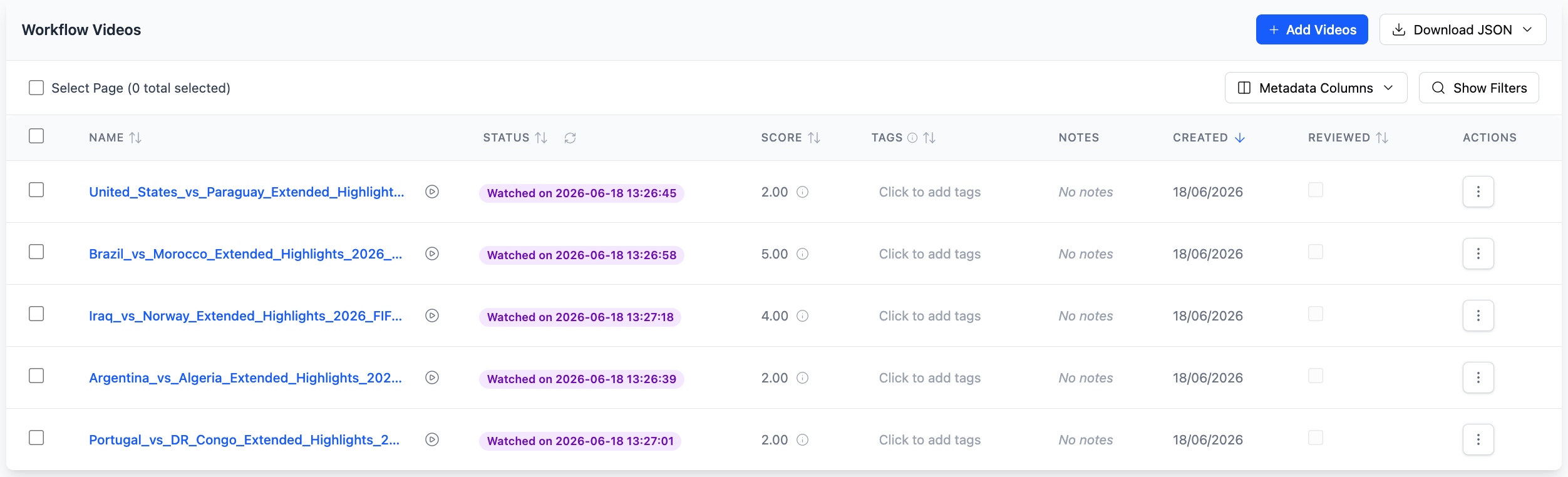
Tip: You can download the output for all videos at once using Download JSON in the top right of the Videos tab. This is useful when the output needs to feed a downstream system or spreadsheet.
Reviewing Output
Click any video name in the table to open its output page. This is where you review what the Watcher found, validate the results, and turn moments into finished content. The output page has six sections: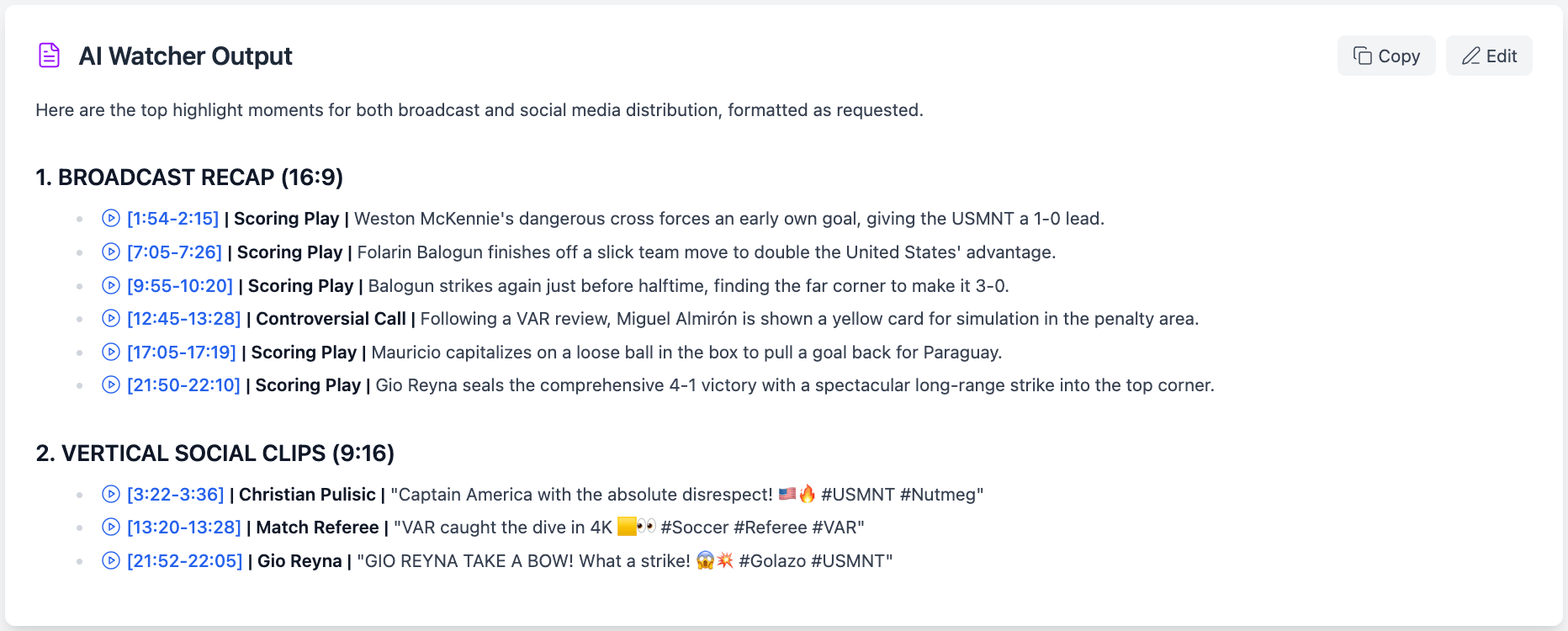
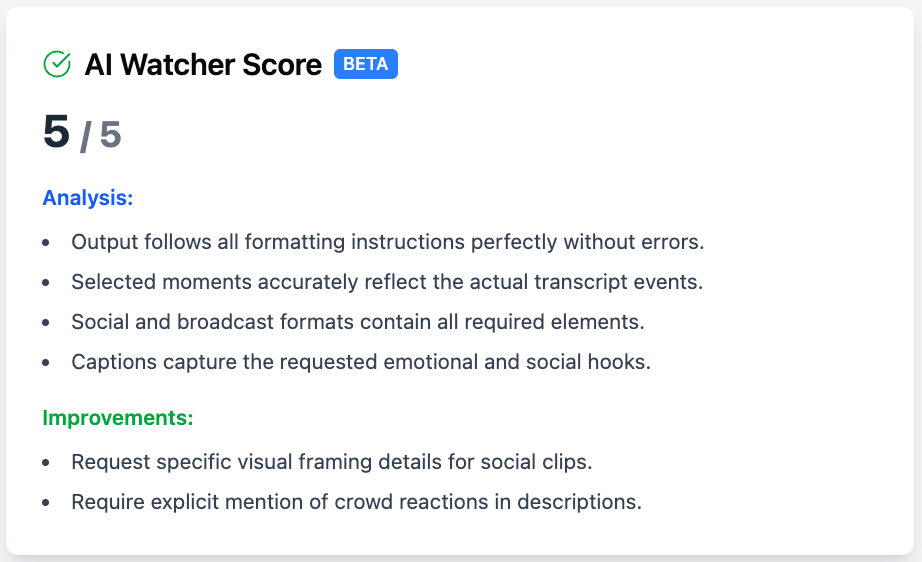
- Analysis: What the Watcher did well, such as following the prompt structure or accurately capturing key moments.
- Improvements: Specific suggestions for refining your instructions to get better results, such as “instruct the model to verify player names against transcript roles.”